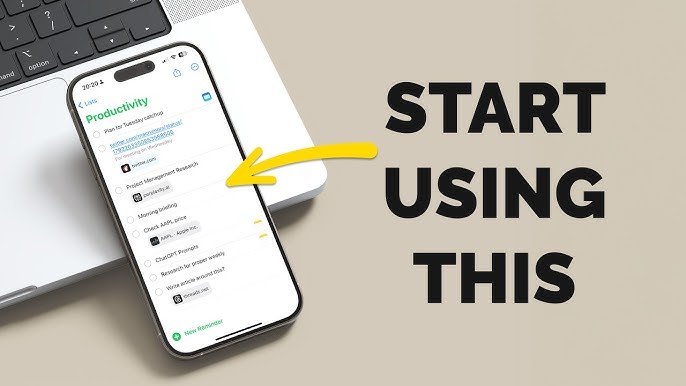
The Apple iPhone is no longer just a communication device. Over the years, it has evolved into a powerful productivity tool capable of replacing planners, notebooks, scanners, task managers, and even lightweight laptops for many users. Whether you are a student, freelancer, business owner, or office worker, your iPhone can significantly improve your efficiency if used correctly.
This detailed guide explores practical, real-world productivity tips for the iPhone that can help you organize your life, manage your time better, reduce distractions, and get more meaningful work done.
1. Master the iPhone Home Screen for Productivity
Your Home Screen is the starting point of everything. If it is cluttered, your focus becomes cluttered too.
Organize Apps by Purpose
Instead of randomly placing apps, organize them into categories:
- Work apps (Email, Slack, Zoom)
- Study apps (Notion, Google Docs, PDF reader)
- Personal apps (Messages, Photos, Music)
- Utilities (Calculator, Notes, Calendar)
Use the First Page Strategically
Keep only essential apps on the first screen:
- Calendar
- Notes
- Tasks app
- Browser
Everything else should be moved to the App Library.
Use Widgets Wisely
Widgets are one of the most underrated productivity tools:
- Calendar widget → upcoming schedule
- Reminders widget → tasks overview
- Weather widget → plan your day
- Notes widget → quick access ideas
A clean Home Screen reduces mental friction and helps you act faster.
2. Use Focus Modes to Eliminate Distractions
Focus Mode is one of the most powerful productivity features on iPhone.
What Focus Mode Does
It filters notifications based on your current activity:
- Work Mode
- Study Mode
- Sleep Mode
- Personal Mode
How to Use It Effectively
Create custom Focus profiles:
Work Focus
- Allow only work emails and Slack
- Block social media apps
- Silence notifications
Study Focus
- Allow educational apps only
- Block games and entertainment
Deep Work Focus
- Allow zero notifications except emergency contacts
Bonus Tip
Link Focus Mode with Home Screen layouts so your apps automatically change based on what you’re doing.
3. Turn Your iPhone into a Task Management System
Instead of relying on memory, use structured task systems.
Use Apple Reminders App
The built-in Reminders app is powerful enough for most users:
- Create daily to-do lists
- Add deadlines
- Set priority levels
- Use subtasks for breakdown
Smart Lists
Create automated lists like:
- “Today”
- “Work Tasks”
- “Urgent”
- “Personal Goals”
Quick Capture Habit
Whenever something comes to mind:
- Open Siri and say: “Remind me to…”
- Or use the Notes app for instant capture
This prevents mental overload and forgotten tasks.
4. Use Siri for Hands-Free Productivity
Siri is more useful than most people realize.
Everyday Commands
- “Remind me at 6 PM to call Ali”
- “Add meeting tomorrow at 10 AM”
- “Send message to Ahmed”
- “Set timer for 25 minutes”
Productivity Boost
Siri helps you:
- Avoid manual typing
- Capture ideas instantly
- Set reminders while multitasking
Using voice commands saves seconds—but those seconds add up to hours over time.
5. Use Notes App as a Digital Brain
The Notes app is more than just a note-taking tool.
Organize Notes Properly
- Create folders: Work, Study, Ideas, Personal
- Use tags like #urgent, #project, #ideas
Advanced Features
- Checklists for tasks
- Tables for planning
- Scanning documents
- Handwriting support with Apple Pencil (on supported devices)
Daily Use Strategy
- Morning: plan day in Notes
- During day: capture ideas
- Evening: review and organize
This builds a second brain inside your phone.
6. Use Calendar Like a CEO
Most people underestimate Calendar apps. Professionals treat their calendar like a command center.
Time Blocking Method
Instead of just adding events:
- Block time for work
- Block time for study
- Block breaks
- Block personal time
Color Coding
Assign colors:
- Blue = Work
- Green = Personal
- Red = Important deadlines
Weekly Planning Habit
Every Sunday:
- Plan your week
- Add all important tasks
- Adjust workload realistically
This reduces stress and improves clarity.
7. Reduce Digital Distractions
Your iPhone can either be your biggest productivity tool or your biggest distraction.
Turn Off Unnecessary Notifications
Go to:
- Settings → Notifications
Disable: - Social media alerts
- Promotional emails
- Unimportant app notifications
Use Screen Time
Set limits for:
- TikTok
- YouTube
- Gaming apps
Grayscale Mode Trick
Turning your screen grayscale reduces dopamine stimulation and helps reduce phone addiction.
8. Use Shortcuts App for Automation
The Shortcuts app is a hidden productivity powerhouse.
Useful Automations
- Morning routine automation (weather + calendar + reminders)
- Work mode activation
- Low battery saver mode
- Auto messaging replies
Example Shortcut
“Start Work Mode”
- Turns on Focus Mode
- Opens Calendar
- Opens Notes
- Starts productivity music playlist
Automation reduces decision fatigue.
9. Use Files App for Document Management
Instead of losing files in random apps, use the Files app:
Organize Like a Computer
- Work Documents
- PDFs
- Images
- Downloads
Cloud Integration
Connect:
- iCloud Drive
- Google Drive
- Dropbox
Scan Documents
Use iPhone camera to:
- Scan receipts
- Scan contracts
- Save PDFs instantly
This eliminates paper clutter.
10. Use Safari Smart Features
Your browser can also boost productivity.
Reading List
Save articles for later instead of getting distracted.
Tab Groups
Organize browsing:
- Work research
- Personal browsing
- Study material
Reader Mode
Removes distractions from web pages so you can focus on content only.
11. Improve Email Management
Email overload kills productivity.
Use Mail App Smartly
- Turn on VIP contacts
- Use filters
- Archive instead of deleting
Inbox Zero Strategy
- Respond immediately (if <2 min)
- Archive completed emails
- Schedule follow-ups
Unsubscribe Habit
Regularly remove unnecessary subscriptions.
12. Use iPhone for Learning and Skill Development
Your iPhone can become a learning machine.
Best Uses
- Online courses
- Audiobooks
- Podcasts
- Language learning apps
Passive Learning
- Listen during commute
- Learn during breaks
- Watch short educational content
This turns idle time into growth time.
13. Health and Productivity Connection
Productivity is strongly linked to physical and mental health.
Use Health App
Track:
- Sleep
- Steps
- Screen time
- Activity levels
Sleep Focus Mode
Improves sleep quality by:
- Blocking notifications
- Reducing screen distractions
- Encouraging routine sleep schedule
Better health = better focus.
14. Use Dictation for Faster Writing
Instead of typing everything:
- Use voice dictation in Notes, Messages, and Emails
Benefits
- Faster idea capture
- Less typing fatigue
- Better for long messages
Many professionals use dictation for drafting documents.
15. Backup and Sync Everything
Productivity fails when data is lost.
iCloud Sync
Ensure:
- Notes synced
- Contacts backed up
- Files stored safely
- Photos protected
Why It Matters
You can switch devices or recover data anytime without disruption.
16. Minimalist App Strategy
Avoid app overload.
Rule:
If an app does not improve your work, remove it.
Keep only:
- Productivity apps
- Communication tools
- Learning apps
- Essential utilities
A minimalist phone leads to a focused mind.
17. Use “Do Not Disturb” for Deep Work
Sometimes the best productivity hack is silence.
When to Use It
- Studying
- Writing
- Important meetings
- Creative work
Pro Tip
Schedule Do Not Disturb automatically during work hours.
Conclusion
The iPhone is one of the most powerful productivity tools ever created—but only if used intentionally. By organizing your apps, using Focus Modes, automating tasks, managing time effectively, and reducing distractions, you can transform your device into a personal productivity system.
The goal is not to use more features—it is to use the right features consistently.
When used correctly, your iPhone becomes more than a smartphone. It becomes a personal assistant, planner, notebook, learning tool, and workflow manager all in one.
If you apply even half of these strategies, you will notice a significant improvement in your daily efficiency, focus, and output.